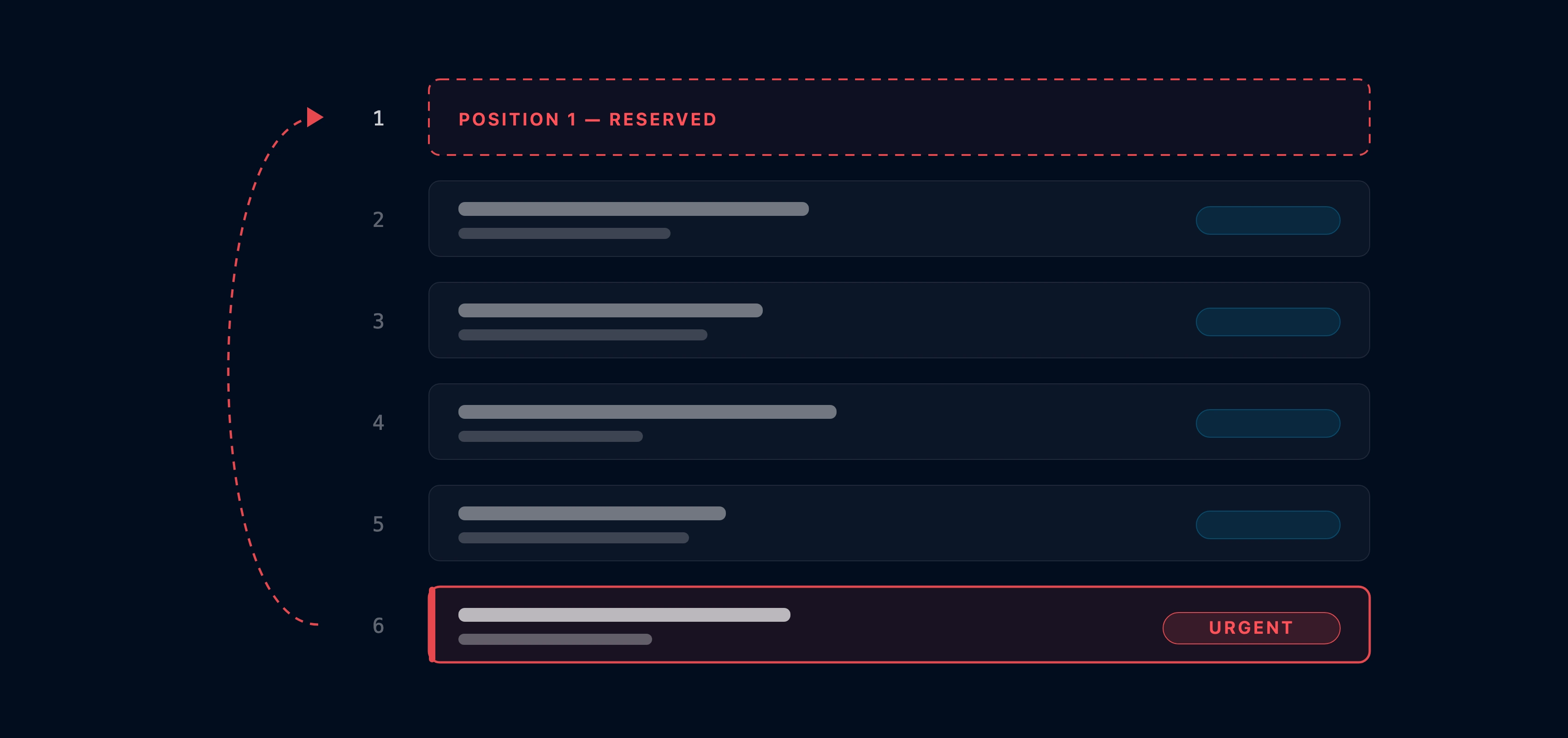
Prioritize stock, sales and urgent orders with ease and the shop floor follows in seconds
Every order takes a priority level automatically. You can assign another level and instantly Epifor schedules around it. When an urgent order lands, flag it in high priority, and all the jobs are shown firsts in the appropriate work centers with red signs.
Epifor's Advanced Prioritization Levels let you decide the order your floor works in and change it the moment things shift. When an urgent order comes in, you raise its priority and Epifor reorders the floor around it, pushes the new order to every work center, and recalculates delivery dates, so an urgent job gets through without derailing everything behind it.
Prioritization Levels
Smart rules to manage and drive your shop floor.
Assign a priority level to every order and Epifor schedules by it. Raise or lower a level with a drag, insert an urgent job at the top, and the sequence updates everywhere at once, so the floor always reflects your latest call.
Target completion date
The 1st and standard priority level is the target completion date.
Priority levels
The 2nd level has three intermediate levels of Low, Middle, High. High priority is usually used for urgent orders and trigger red marks in operators screen. Low and Middle level are usually used for Stock and Sales orders.
Truck loading date
The 3rd level is the truck loading date which is higher than the target completion date to push production to deliver before truck is waiting.
Frequently asked questions
Q.01What are advanced prioritization levels?
They are the priority you assign to each production order, which decides the sequence your floor works in. In Epifor, work runs in the order you set inside the shop floor management system, not the order it happened to arrive, and you can change that sequence whenever priorities shift.
Q.02How do I move an urgent order to the front?
You drag and drop it at the top and Epifor reorders the floor around it. The urgent job moves ahead of lower priority work, and the rest of the schedule adjusts behind it.
Q.03What happens to everyone else when I change a priority?
The new order reaches every work center automatically. Operators see the updated sequence at their terminal without a phone call or a reprint, so the whole floor is working from the same, current priority.
Q.04Do delivery dates update when I reprioritize?
Yes. When you move a job up or down, Epifor recalculates the affected delivery dates, so you can see the effect of pushing an urgent order through before you commit to it.
Q.05Can I handle an urgent order without breaking the rest of the schedule?
That is the point. Instead of scrambling the whole plan, you raise one order's priority and Epifor fits it in and reorders the rest, so the urgent job gets through while committed work stays visible and under control.
Q.06Does priority carry across a multi stage job?
Yes. An order's priority follows it through its stages and work centers, so a high priority job is treated as high priority at every step, not just the first.
Q.07Who can change priorities?
Priorities are managed by the people you give the permission to, typically production managers and planners, so the sequence stays under control rather than being changed at random on the floor.
Q.08Does this replace my ERP?
No. Your ERP holds the orders; Epifor decides the sequence they run in on the floor and keeps every work center current. It adds the shop-floor prioritization layer and complements your ERP rather than replacing it.
Free online presentation
See it reprioritize
Book a short presentation and see how Epifor sets priority levels, pushes urgent orders to the front and keeps every work center on the same sequence, all inside one shop floor management system.